Step-by-Step: Join a Remote Support Session on Windows
We’re committed to making your support experience as smooth and secure as possible. Before we begin, please follow these steps to ensure a safe and successful remote session:
Close any sensitive documents or applications that you do not want to share during the session.
Ensure you have a stable internet connection to avoid interruptions.
Enter your support code.
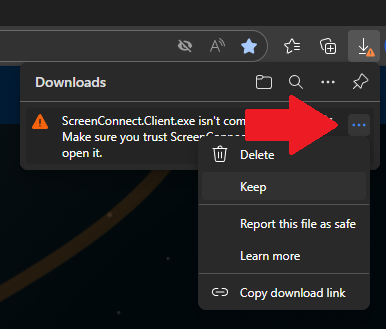
Edge blocked my download
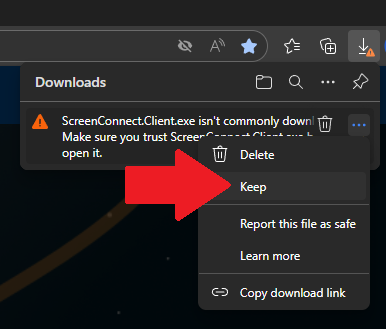
Hover the mouse over the file name for the sub menu to appear.
Click Keep.
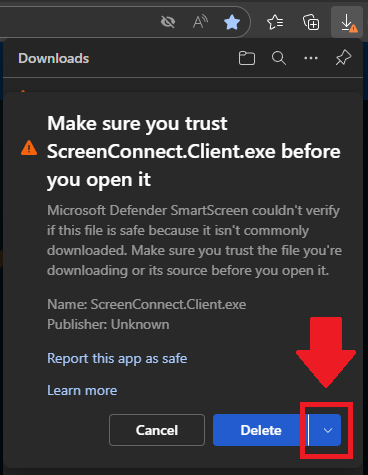
Click the down arrow to the right of Delete.
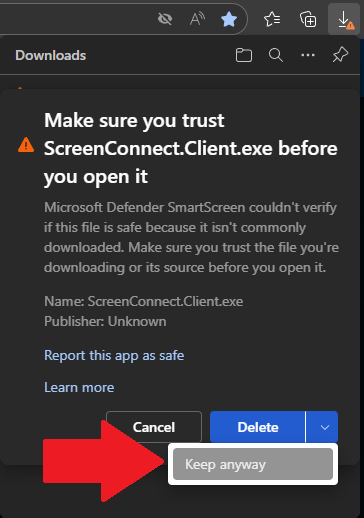
Click Keep anyway.
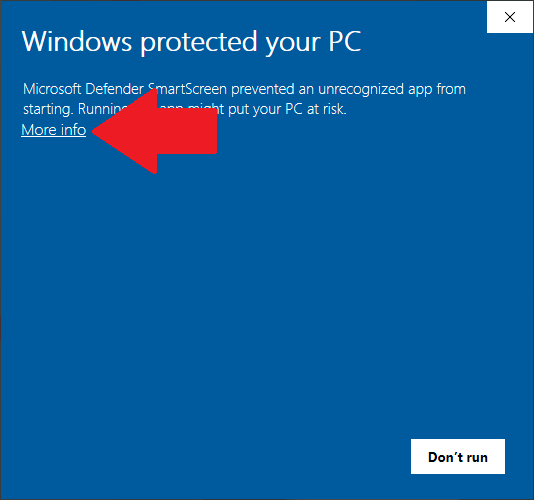
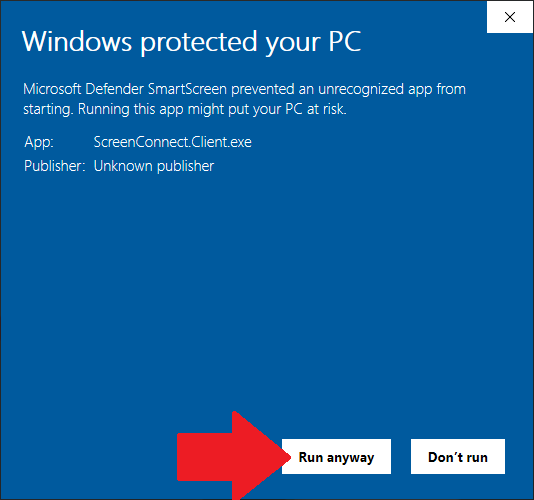
Bypass Microsoft Defender SmartScreen
Open the ScreenConnect.Client file and follow these instructions if Microsoft Defender blocks the program from running.
Click More info.
Click Run anyway.
Click Run anyway.
That’s it! Your support engineer now has secure remote access to your computer.
Edge blocked my download
Hover the mouse over the file name for the sub menu to appear.
Click Keep.
Click the down arrow to the right of Delete.
Click Keep anyway.
Bypass Microsoft Defender SmartScreen
Open the ScreenConnect.Client file and follow these instructions if Microsoft Defender blocks the program from running.
Click More info.
Click Run anyway.
Click Run anyway.
That’s it! Your support engineer now has secure remote access to your computer.
We use cookies on our website to give you the most relevant experience by remembering your preferences and repeat visits. By clicking “Accept”, you consent to the use of ALL the cookies.
This website uses cookies to improve your experience while you navigate through the website. Out of these, the cookies that are categorized as necessary are stored on your browser as they are essential for the working of basic functionalities of the website. We also use third-party cookies that help us analyze and understand how you use this website. These cookies will be stored in your browser only with your consent. You also have the option to opt-out of these cookies. But opting out of some of these cookies may affect your browsing experience.
Necessary cookies are absolutely essential for the website to function properly. These cookies ensure basic functionalities and security features of the website, anonymously.
Cookie
Duration
Description
cookielawinfo-checkbox-analytics
11 months
This cookie is set by GDPR Cookie Consent plugin. The cookie is used to store the user consent for the cookies in the category "Analytics".
cookielawinfo-checkbox-functional
11 months
The cookie is set by GDPR cookie consent to record the user consent for the cookies in the category "Functional".
cookielawinfo-checkbox-necessary
11 months
This cookie is set by GDPR Cookie Consent plugin. The cookies is used to store the user consent for the cookies in the category "Necessary".
cookielawinfo-checkbox-others
11 months
This cookie is set by GDPR Cookie Consent plugin. The cookie is used to store the user consent for the cookies in the category "Other.
cookielawinfo-checkbox-performance
11 months
This cookie is set by GDPR Cookie Consent plugin. The cookie is used to store the user consent for the cookies in the category "Performance".
viewed_cookie_policy
11 months
The cookie is set by the GDPR Cookie Consent plugin and is used to store whether or not user has consented to the use of cookies. It does not store any personal data.
Functional cookies help to perform certain functionalities like sharing the content of the website on social media platforms, collect feedbacks, and other third-party features.
Performance cookies are used to understand and analyze the key performance indexes of the website which helps in delivering a better user experience for the visitors.
Analytical cookies are used to understand how visitors interact with the website. These cookies help provide information on metrics the number of visitors, bounce rate, traffic source, etc.
Advertisement cookies are used to provide visitors with relevant ads and marketing campaigns. These cookies track visitors across websites and collect information to provide customized ads.